Mastering RGB Histogram Reading: The Complete Guide to Avoiding Clipped Shadows in High-Contrast Photography
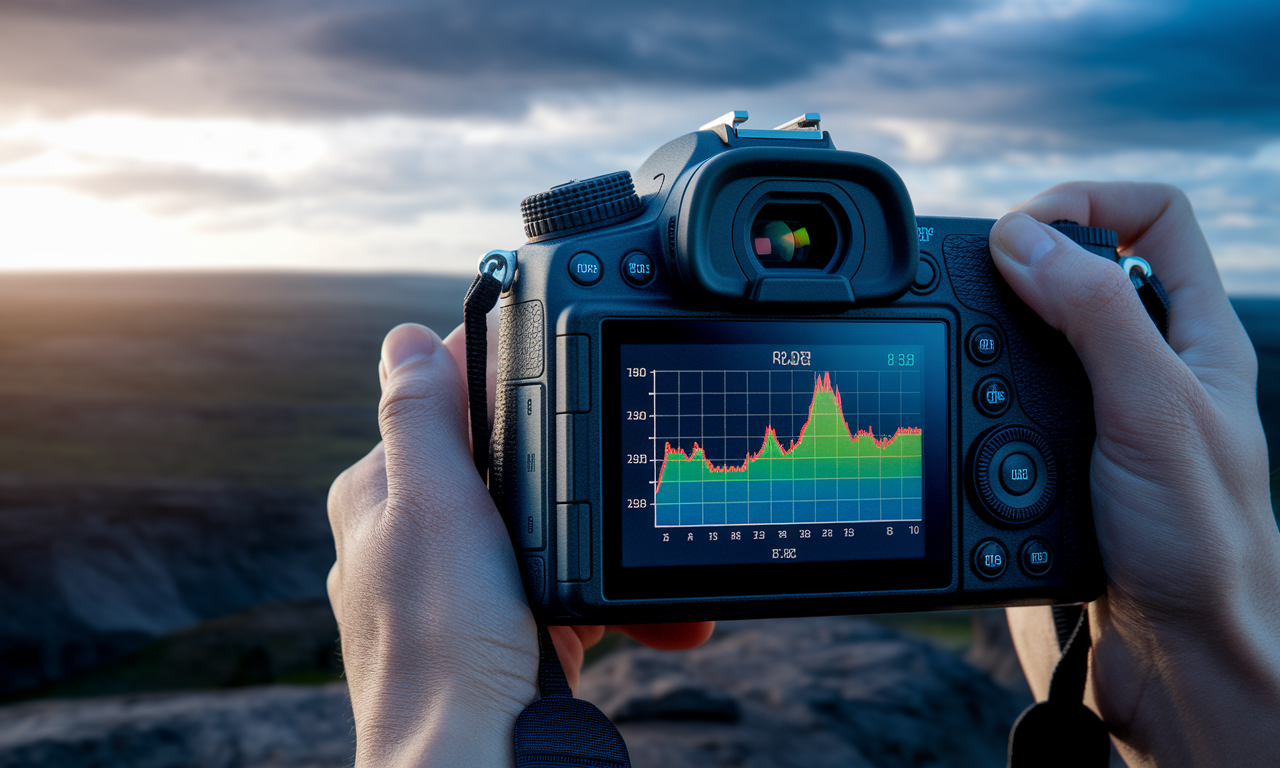
Understanding the RGB histogram is essential for every photographer who wants perfect exposure control. This visual tool shows exactly how light and dark tones spread across your image. With proper histogram reading skills, you can avoid clipped shadows and capture stunning high-contrast scenes.
Many photographers struggle with exposure in challenging lighting conditions. The RGB histogram takes the guesswork out of exposure decisions. It provides real-time feedback about your image's tonal distribution before you press the shutter.
High-contrast scenes present unique challenges that test even experienced photographers. Bright highlights and deep shadows can fool your camera's metering system. The histogram becomes your most reliable tool for making accurate exposure adjustments.
Step-by-Step Guide
Understanding RGB Histogram Basics
The RGB histogram displays three separate color channels: red, green, and blue. Each channel shows how pixels are distributed across the tonal range. The left side represents shadows, while the right side shows highlights.
Pure black pixels appear on the far left at position zero. Pure white pixels stack up on the far right at position 255. Everything between shows the midtone values that create your image's contrast.
A well-exposed image typically shows a mountain-like curve with most pixels in the middle. Clipped shadows appear as spikes touching the left edge. Blown highlights create spikes on the right edge.
Accessing Your Camera's RGB Histogram
Most modern cameras include histogram display options in their menu systems. Look for "Display Options" or "Playback Settings" in your camera's menu. Enable both luminance and RGB histogram displays for complete tonal information.
Some cameras show the histogram during live view shooting mode. This real-time feedback helps you adjust settings before capturing the image. Press the Info button repeatedly to cycle through different display options.
After taking a photo, press the playback button and cycle through display modes. The RGB histogram usually appears alongside basic image information. Some cameras overlay the histogram directly on the image preview.
Reading Histogram Shapes and Patterns
Different histogram shapes tell unique stories about your exposure decisions. A histogram shifted left indicates an underexposed image with dominant shadow tones. Right-shifted histograms suggest overexposure with bright highlight values.
Low-key images naturally produce left-heavy histograms without necessarily indicating exposure problems. High-key photography creates right-weighted histograms that can still be perfectly exposed. Context matters more than histogram position alone.
Multiple peaks in your histogram indicate distinct tonal regions in your scene. A portrait against a bright sky might show two separate mountains. This pattern helps identify which exposure adjustments will affect specific image areas.
Identifying Clipped Shadows
Clipped shadows appear as vertical spikes touching the left edge of the histogram. These spikes indicate areas where detail has been lost to pure black. Once clipped, shadow detail becomes nearly impossible to recover in post-processing.
Not all shadow clipping represents a technical failure. Creative choices sometimes require deep blacks for dramatic effect. However, unintentional clipping often ruins important image details that viewers expect to see.
Individual color channels can clip independently in the RGB histogram. Red channel clipping might occur while green and blue channels retain detail. This selective clipping creates color shifts in shadow areas that appear unnatural.
Practical Applications
Landscape Photography Exposure Control
Landscape scenes often contain extreme dynamic range from dark foregrounds to bright skies. The RGB histogram reveals whether your current settings capture detail in both areas. Look for gaps between shadow and highlight peaks that indicate missing midtone information.
Graduated neutral density filters help balance exposure when the histogram shows excessive highlight clipping. Position the filter to reduce sky brightness while maintaining foreground detail. Check your histogram after filter placement to verify improved tonal distribution.
HDR bracketing becomes necessary when no single exposure can capture the full dynamic range. Take multiple shots at different exposures, monitoring how each histogram changes. Blend these exposures later to create a complete tonal range.
Portrait Photography with Histogram Reading
Portrait lighting creates distinct histogram patterns based on your lighting setup. Window light portraits often show smooth curves across the tonal range. Studio lighting with controlled fill creates more predictable histogram shapes.
Skin tone reproduction requires careful attention to the midtone portion of your histogram. Clipped shadows can hide important facial details in eye sockets and under the nose. Blown highlights eliminate texture in bright skin areas and clothing.
Backlit portraits present special histogram challenges with bright rim lighting and shadowed faces. Expose to retain highlight detail in the rim light, then use fill flash or reflectors. Monitor how added fill light affects your histogram distribution.
Street photography requires quick histogram assessment skills for changing lighting conditions. Learn to recognize good histogram shapes at a glance. Practice reading histograms until the process becomes automatic during fast-paced shooting situations.
Tips & Tricks
Highlight Recovery Techniques
Modern cameras capture more highlight detail than the histogram initially suggests. Shoot in RAW format to maximize highlight recovery potential. The RGB histogram shows JPEG preview data, which clips highlights sooner than RAW files.
Expose to the right technique pushes your histogram toward highlights without clipping. This approach captures maximum image data while maintaining recoverable highlights. Reduce exposure in post-processing to achieve your desired brightness levels.
Individual color channels clip at different rates depending on your camera sensor. Red channels often clip first in warm lighting conditions. Monitor all three RGB channels separately to identify which colors need protection.
Shadow Detail Preservation Methods
Fill flash adds controlled light to shadow areas without affecting your main exposure. Use flash exposure compensation to fine-tune the fill amount. Watch your histogram shift right as fill light adds detail to the shadow regions.
Reflectors bounce existing light into shadow areas for natural-looking fill illumination. Position reflectors to create gentle light that lifts shadows without creating obvious secondary light sources. Monitor histogram changes as you adjust reflector positions.
Higher ISO settings can prevent shadow clipping but introduce digital noise. Modern cameras handle high ISO values better than older models. Balance shadow detail preservation against acceptable noise levels for your intended image use.
Advanced RGB Histogram Techniques
Color temperature affects individual channel clipping patterns in your RGB histogram. Tungsten lighting often clips red channels before green and blue. Daylight conditions typically show more balanced channel distribution across the histogram.
White balance settings influence how each color channel responds to different light sources. Incorrect white balance can push one channel toward clipping while others remain well-exposed. Set proper white balance before making exposure decisions.
Exposure Compensation Based on Histogram Analysis
Use exposure compensation to shift your entire histogram left or right based on the tonal distribution. Negative compensation moves the histogram left, darkening the image and reducing highlight clipping. Positive compensation brightens shadows but may clip highlights.
Small exposure adjustments of one-third stops often produce dramatic histogram changes. Make incremental changes while monitoring how each adjustment affects the overall tonal distribution. Large exposure jumps can create new clipping problems.
Aperture changes affect depth of field but also modify exposure and histogram position. Shutter speed adjustments impact motion blur characteristics alongside exposure values. Choose your exposure method based on creative priorities and histogram requirements.
Sample Scenario
Wedding Photography Challenge
Wedding ceremonies present extreme contrast between bright white dresses and dark formal wear. The bride's dress often appears as a bright peak on the right side of your histogram. The groom's dark suit creates a separate peak in the shadow region.
Church interiors add complexity with stained glass windows creating brilliant highlights alongside dim interior lighting. Your RGB histogram might show three distinct regions: dark church interior, medium-toned subjects, and bright window areas.
The optimal approach involves exposing for the dress to maintain detail in the most important bright element. Allow some shadow clipping in the dark suit if necessary. Use fill flash to lift shadows without affecting the dress exposure.
Sunrise Landscape Exposure
Early morning landscapes feature dark silhouetted foregrounds against bright colorful skies. Your initial histogram reading might show severe shadow clipping with highlight spikes from the bright sky. This extreme distribution challenges most camera sensors.
Multiple exposure techniques work well for this scenario. Bracket three shots: one exposed for shadows, one for midtones, and one for highlights. Each exposure creates a different histogram pattern capturing specific tonal ranges.
Graduated filters provide single-exposure solutions when time constraints prevent bracketing. Position the filter to darken the sky while maintaining foreground exposure. Watch your histogram compress as the filter reduces overall dynamic range.
Key Do's for Effective Usage
Essential Histogram Reading Practices
Check your histogram after every important shot to verify exposure accuracy. Develop the habit of glancing at the histogram display immediately after pressing the shutter. This quick check prevents costly exposure mistakes during critical moments.
Shoot in RAW format to maximize your post-processing flexibility with challenging histograms. RAW files contain more recoverable highlight and shadow information than JPEG previews suggest. This extra data provides safety margins for exposure correction.
Learn to recognize healthy histogram shapes for different types of photography. Portrait histograms differ significantly from landscape distributions. Understanding normal patterns helps you identify when adjustments are needed.
Proper Exposure Decision Making
Prioritize highlight protection over shadow detail when faced with impossible exposure choices. Blown highlights cannot be recovered, while shadow detail often responds well to careful post-processing. Err on the side of slight underexposure.
Use exposure compensation aggressively based on histogram feedback rather than relying solely on camera metering. Your camera's meter can be fooled by unusual lighting conditions. The histogram provides objective tonal information.
Consider the final image use when making histogram-based exposure decisions. Images destined for web use can tolerate more aggressive histogram compression. Large prints require more conservative exposure approaches with full tonal detail preservation.
Common Mistakes to Avoid
Histogram Misinterpretation Errors
Never assume that centered histograms always indicate perfect exposure. Scene content determines appropriate histogram distribution. A snow scene should show a right-heavy histogram, while a coal mine interior needs left-weighted distribution.
Avoid relying only on the luminance histogram when shooting in color. The RGB histogram provides crucial information about individual color channel clipping. Color cast problems often appear in individual channels before affecting the overall luminance display.
Don't ignore minor histogram spikes that touch the edges. Small amounts of clipping can indicate the beginning of more serious exposure problems. Address minor clipping before it spreads to larger portions of your image.
Technical Setting Mistakes
Shooting in JPEG mode limits your post-processing options when dealing with challenging histograms. JPEG compression discards tonal information that could help recover problem exposures. Always shoot RAW for maximum histogram flexibility.
Using auto ISO in challenging lighting conditions can create inconsistent histogram patterns between shots. Manual ISO control provides predictable exposure behavior. Set ISO manually when histogram consistency matters more than convenience.
Forgetting to adjust white balance affects individual color channel distribution in your RGB histogram. Incorrect white balance can push color channels toward clipping unnecessarily. Set appropriate white balance before making exposure decisions.
Troubleshooting & FAQs
Why doesn't my camera show RGB histograms?
Entry-level cameras often display only luminance histograms to simplify the interface. Check your camera manual for "RGB histogram," "color histogram," or "detailed display" options. Some models require specific button combinations to access advanced histogram displays.
Older camera models might not include RGB histogram functionality at all. Consider upgrading to a newer model if color channel analysis is important for your photography. Alternatively, use post-processing software to analyze individual color channels after shooting.
How do I fix histogram problems in post-processing?
Shadow recovery tools in Lightroom and Photoshop can lift histogram data from the left edge. Use the Shadows slider carefully to avoid creating unnatural-looking results. Excessive shadow lifting often introduces noise and reduces image contrast.
Highlight recovery works best with RAW files that contain extra tonal information beyond the JPEG preview. Use the Highlights slider to pull back clipped data from the right side of your histogram. Modern cameras capture surprising amounts of recoverable highlight detail.
What causes color shifts in my RGB histogram?
Mixed lighting conditions create different color temperatures that affect individual RGB channels differently. Fluorescent lights often cause green color casts, while tungsten lighting adds orange shifts. Set custom white balance for each lighting situation to maintain neutral color distribution.
Camera sensor characteristics can favor certain color channels over others. Some sensors show slight red or blue biases that appear in histogram distributions. Understanding your specific camera's color behavior helps you interpret RGB histogram patterns correctly.
Bringing It All Together
Mastering RGB histogram reading transforms you from a reactive photographer into a proactive image creator. Instead of hoping for good exposure, you gain precise control over every tonal decision. This knowledge becomes invaluable during challenging shoots where second chances don't exist.
The techniques covered in this guide work across all camera brands and photography styles. Whether you shoot weddings, landscapes, or street photography, histogram analysis provides consistent exposure feedback. Practice these methods until they become second nature during active shooting.
Remember that histogram reading is a tool, not a rule. Creative photography sometimes requires breaking technical guidelines for artistic effect. Use your newfound knowledge to make informed exposure choices rather than following rigid histogram patterns.
Professional photographers rely on histogram analysis because it provides objective exposure data independent of viewing conditions. LCD screens can be difficult to judge in bright sunlight, but histograms remain accurate regardless of ambient lighting. This reliability makes histogram reading an essential skill for serious photographers who demand consistent results.