Sports Photo Ingest: Faster Cards, Faster Captions
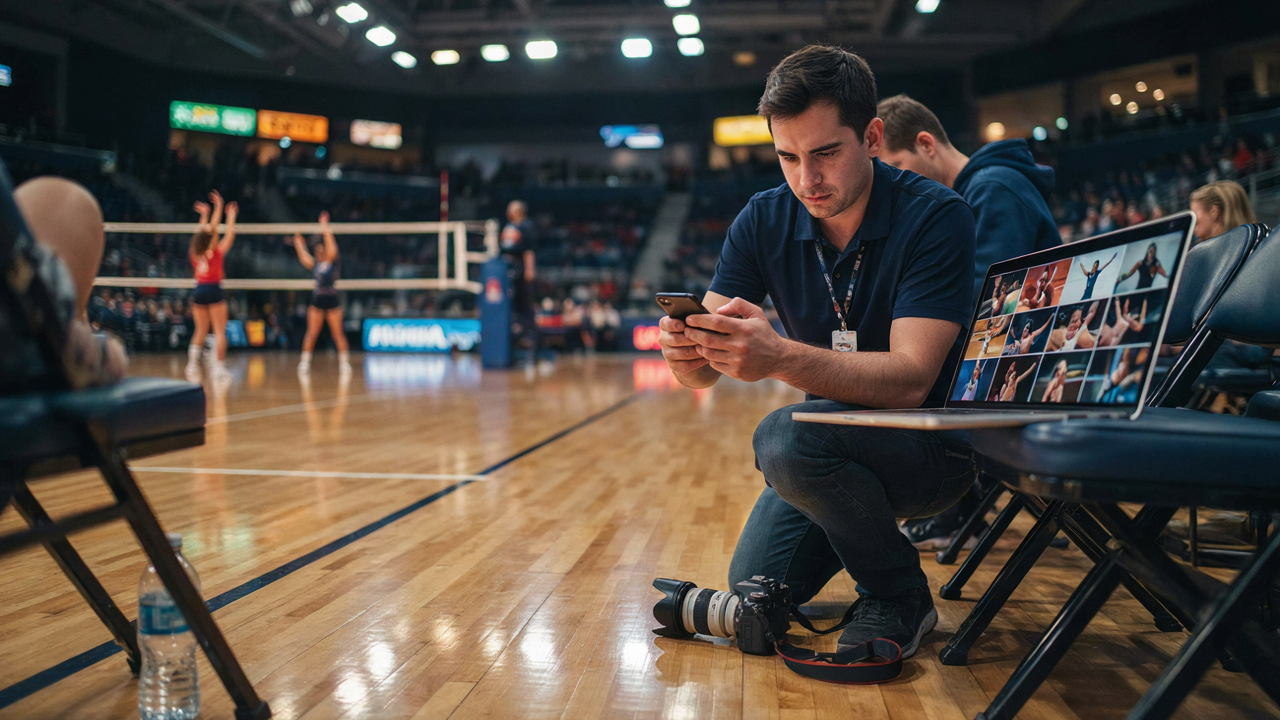
The card finishes copying and the real work starts. Hundreds of photos still need names, and the minutes spent typing them sit between the last whistle and delivery.
Sports photo ingest is where that time gets spent or saved. This post walks through one workflow built on GalleryID Desktop: a fast copy that names and files your photos on the way in, CaptionID and MatchID to name the athletes, and SidelineID to start naming on your phone at the game.
Disclosure: LensLesson is affiliated with GalleryID, LLC. This post describes one workflow and isn't an independent review. The copy rate below is GalleryID's own measurement. More at galleryid.com/desktop.
Step-by-Step Guide
Copy, rename and file in one pass
Press ⌘G, or plug in a card, and the Ingest dialog opens. One pass copies the frames, renames them from a pattern, files them in a dated folder and applies your caption template, so the photos arrive ready to tag. A saved profile remembers the whole dialog, so you can keep one per kind of job.
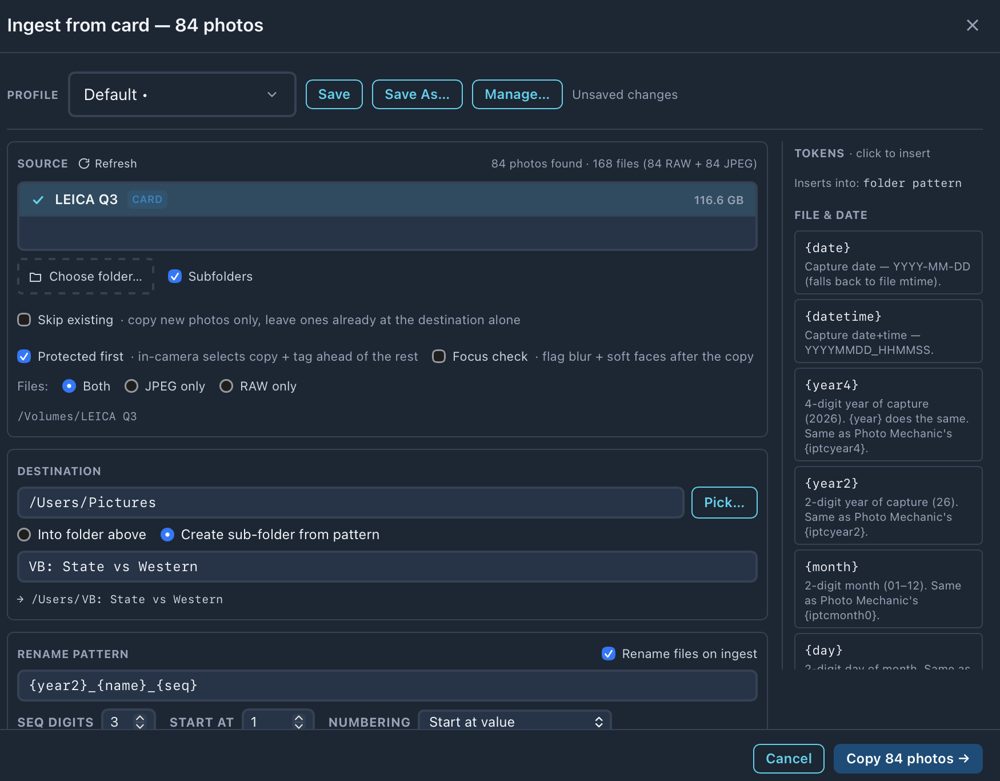
GalleryID's own measurement on one Mac put the copy at about 15 seconds per 1,000 photos, and 21 to 27 seconds with metadata written to all of them. That Mac had a fast CFexpress card and reader. The reader sets the ceiling, so your rate depends on yours.
Send frames from the camera to your phone
SidelineID is the phone half of GalleryID Desktop, on iPhone and Android. The camera joins the phone's hotspot and sends each JPEG after capture. Once per camera body, point its FTP transfer at the address and port the app shows. Then pair the phone from Catalog, Pair Phone on Desktop, and your rosters and templates sync down.
Practical Applications
After sports photo ingest, two paths get names into the file. CaptionID names from a roster and needs no headshots. Set the folder's roster and template once, tag a person, and the caption, title and people fields fill in. Type a name, a number or a code in the tag box and press Enter.
MatchID finds the athlete. It uses facial recognition against headshots you index on your own computer, plus jersey number reading. Matches above the confidence line you set show as Auto, and the rest wait in a review queue. Names are confirmed, never guessed. Football, lacrosse and hockey take the most review, since helmets hide faces.
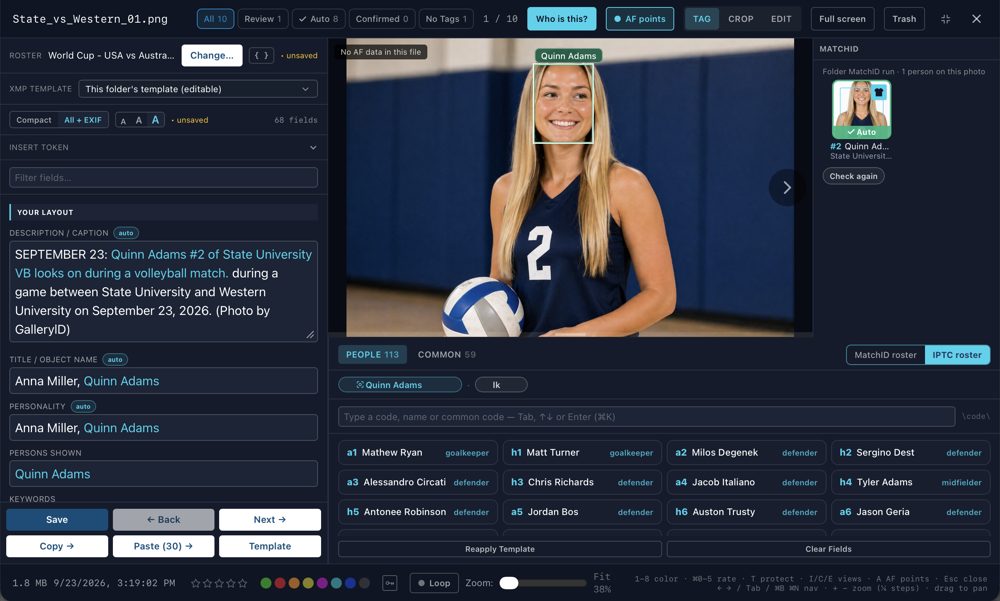
Either path writes the names into the file's metadata, so they travel with it into other editing software. For the camera side of a long game, see our guide to camera buffer management.
Tips & Tricks
Cull while the card copies
Protect your selects in camera, then ingest with Protected first and Open destination in Browse ticked. Those frames copy ahead of the rest, so you're culling while the remainder arrives. On later cards, Skip existing keeps sports photo ingest to what's new.
Copy fields across a run
For a run of similar frames, caption the first one, press Copy, then Paste on the next frames. Each press saves and moves on.
Sample Scenario
Say you're covering a college volleyball match with your phone in a pocket. Before the match you set the roster and template and paired the phone. During a set, the camera sends frames to the phone. Between rallies you tap a frame, type a jersey number or part of a name in the CaptionID bar above the keyboard, and press Return. The matches rise with number, team and position, and the template writes the caption, headline and people fields.
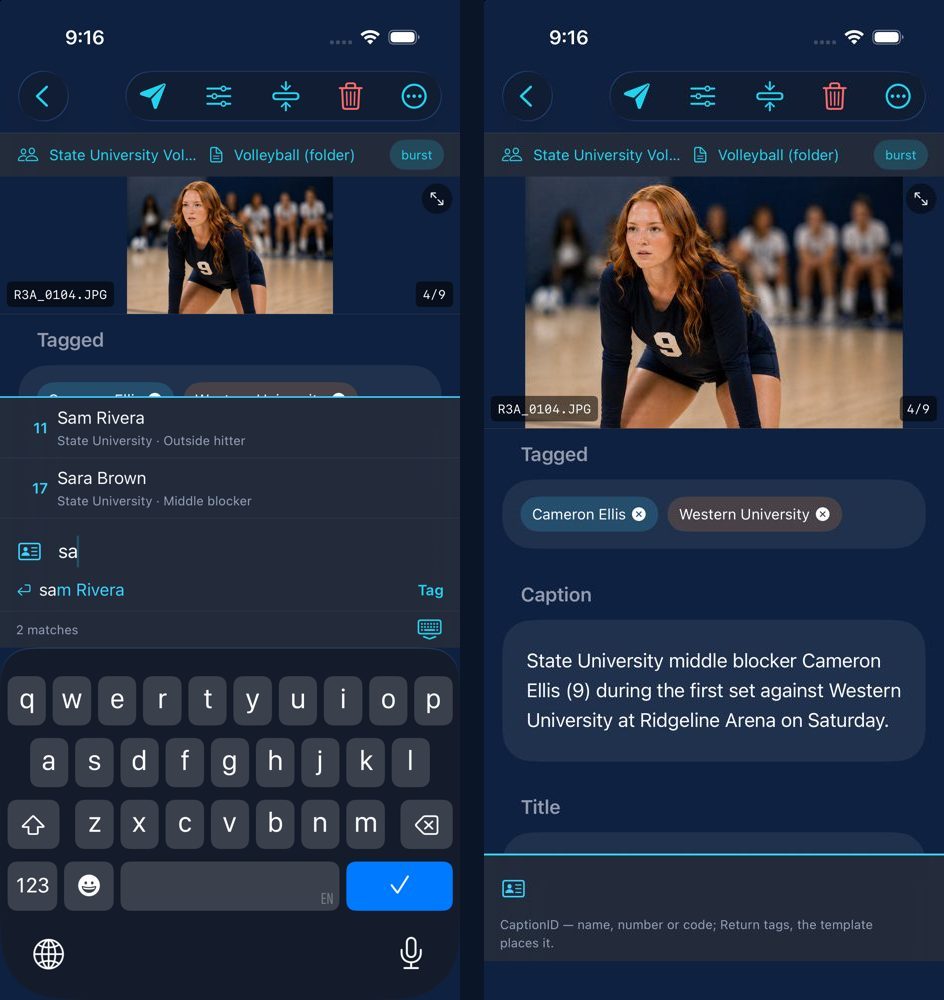
After the match you ingest the card with your saved profile and caption what's left on Desktop. Named frames go out by FTP or SFTP, to Desktop, to Photos or to a share, with the names written to the file first.
Key Do's for Effective Usage
- Pair the phone and sync rosters before game day.
- Set the camera to send JPEGs to the phone.
- Keep SidelineID open on iPhone and use Pocket mode to dim the screen.
- Save an ingest profile with a destination before you turn on auto ingest.
- Review the MatchID cards you aren't sure of.
Common Mistakes to Avoid
- Expecting software to outrun the card reader, which sets the copy speed.
- Sending raw files to the phone. SidelineID takes JPEG only.
- Choosing FTPS on the phone. Use SFTP or plain FTP instead.
- Letting the iPhone app sit in the background, where the receiver stops.
- Looking for shortcodes on the phone. They're a Desktop feature.
Troubleshooting & FAQs
These answers cover the questions that come up most often around card speed, culling and the phone.
How fast is sports photo ingest on a fast card and reader?
In GalleryID's own measurement on one Mac with a CFexpress card and reader, copying ran about 15 seconds per 1,000 photos, or 21 to 27 seconds with metadata written. Your card reader sets the ceiling, so a slower reader means a slower copy.
Can I start culling before the card finishes copying?
Yes. Protect your selects in camera, then ingest with Protected first and Open destination in Browse ticked. The protected frames copy ahead of the rest, so you can cull while the remainder arrives.
Do I need headshots to caption with CaptionID?
No. CaptionID names athletes from a roster you bind to the folder, by name, number or code. Headshots only matter for MatchID, which uses them for facial recognition.
Does MatchID work on helmet sports?
Helmets hide faces, so facial recognition has less to work with in football, lacrosse and hockey. Jersey number reading and the review queue cover part of the gap, but expect more review work than in sports where faces show.
What does the camera need to send frames to my phone?
A camera with an FTP transfer setting that can send JPEGs after capture. You point it at the address and port the app shows (port 2121, passive mode, plain FTP). Raw files and FTPS destinations aren't supported on the phone.
Bringing It All Together
Naming is part of the job, and the time it takes adds up across a season. A fast copy, a roster-driven caption and a phone at the sideline each take a piece of it.
The same habits fit a wider post-processing workflow, and the sports photography guide covers the shooting side.