
Mastering Post Processing Essentials: Complete Guide to Faster, Cleaner Photo Edits — post processing essentials
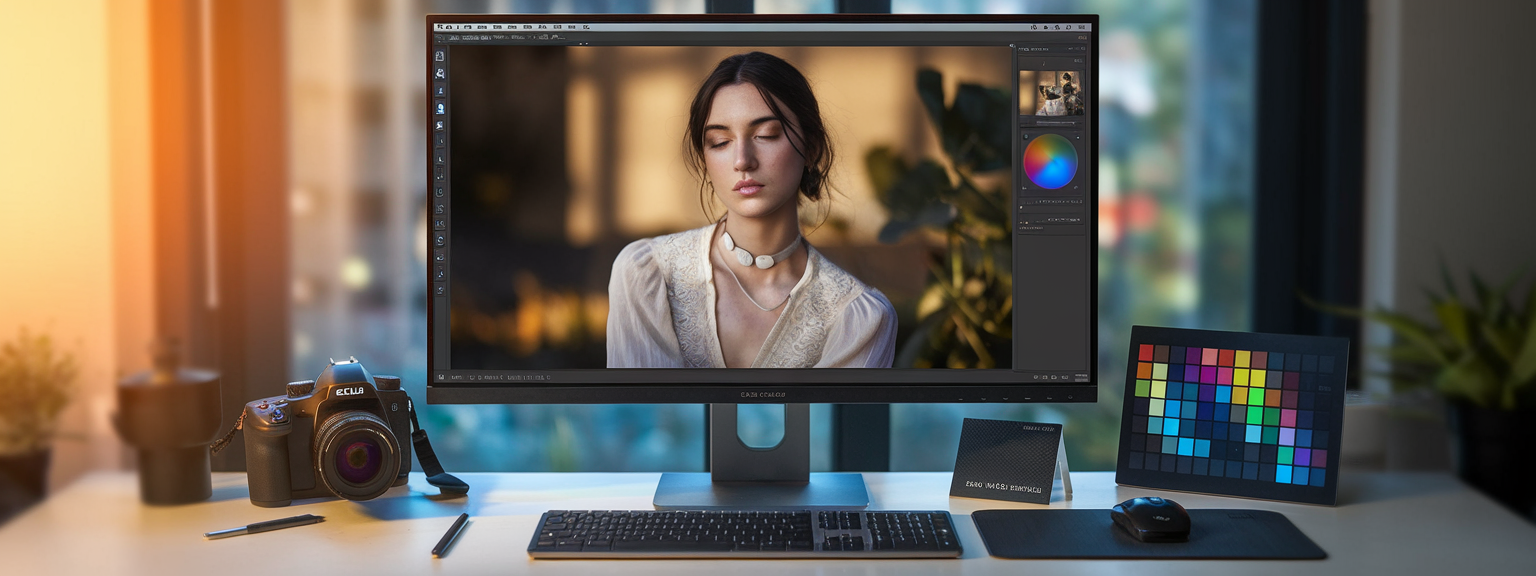
Post processing essentials form the backbone of turning a technically sound capture into a deliberate, professional image. In this guide I cover a repeatable photo editing workflow and the post-processing tips you need to speed up edits, improve consistency, and protect image quality. Whether you focus on Lightroom editing, RAW processing, or advanced color grading, this guide explains practical steps, real-world examples, and troubleshooting advice you can apply immediately.
📝 Step-by-Step Guide: Post Processing Essentials Workflow — post processing essentials
Import & Organization
A consistent import system reduces friction later. Start by importing RAW or high-quality files into a catalog or session. Use a folder naming convention such as YYYY-MM-DD_Location_Client. Apply metadata presets that include copyright, contact, and basic keywords. This early discipline accelerates culling and searching for assets when deadlines are tight.
Efficient Culling
Culling is a two-pass process. First pass: quick flagging to remove obvious rejects. Second pass: refine selections and star your best frames. Aim to keep the top 10–30% depending on the shoot. Tools such as Photo Mechanic or Lightroom’s grid view are ideal for fast selection in high-volume jobs.
Global RAW Processing
Begin edits with RAW processing. Adjust exposure, white balance, and global contrast before creative moves. In Lightroom editing, use the histogram and the Whites/Blacks with Alt/Option to avoid clipping. Because RAW processing preserves more tonal and color data, you gain greater latitude when recovering highlights or opening shadows.
Lens Corrections, Transform & Technical Finish
Enable profile corrections and remove chromatic aberration. Use transform tools for perspective correction in architecture or product shots. Then apply noise reduction and sharpening to preserve detail without introducing artifacts. For heavy ISO images, consider dedicated AI tools for denoising to maintain texture and fine detail.
Local Adjustments and Color Grading
Use local tools—Adjustment Brush, Radial and Graduated filters—to dodge and burn, refine skin, and isolate color changes. For mood, apply HSL adjustments and split toning or the Color Grading panel. Build Lightroom presets and LUTs for consistent looks across a photo editing workflow, which speeds delivery and reinforces your brand style.
📌 Practical Applications: Post Processing Essentials For Different Genres — post processing essentials
Portraits & Headshots
Priority: accurate skin tones, eye detail, and natural texture. Start with RAW processing to set white balance and exposure. Use selective sharpening on eyes and lashes while masking skin to avoid enhancing pores. For skin retouching, prefer non-destructive techniques: virtual copies in Lightroom or smart objects in Photoshop.
Landscape & Nature
Priority: maximize dynamic range and texture. Apply graduated filters to balance sky and ground. Increase clarity and texture selectively to avoid halos. For landscapes, higher sharpening radius and careful luminance noise reduction reveal detail across wide tonal ranges.
Events & Weddings
Priority: speed and consistency across many frames. Create a basic preset per venue or lighting setup and batch-sync similar frames. For low-light portraits, integrate AI denoising to preserve skin detail while reducing grain. Export presets for client galleries and social delivery to save time.
Commercial & Product
Priority: precise color, straight lines, and clean edges. Use color charts and custom camera profiles. Apply transform and lens corrections to remove distortion. For surface detail, use selective high-pass sharpening while protecting smooth areas with masking.
💡 Tips & Tricks: Post Processing Essentials For Faster Edits — post processing essentials
Time-Saving Presets and Catalog Habits
Create import presets that apply metadata and basic lens corrections. Build a small set of trusted presets for common lighting scenarios—golden hour, overcast, studio flash. Use virtual copies for experimentation; this preserves baseline edits while you develop variations for client approval.
Smart Masking and Local Adjustments
Leverage Lightroom’s AI-based Masking to select sky, subject, or foreground quickly. Then apply graduated noise reduction or targeted clarity. This reduces manual brush time and keeps edits consistent across images that share similar elements.
Sharpening & Noise Reduction Shortcuts
Use high Masking values for portraits to protect skin. For landscapes, use lower masking and higher radius. For high-ISO images, start with conservative luminance noise reduction and then run an AI denoiser if needed. When exporting, apply output sharpening tailored to destination—screen, standard, or print.
📸 Sample Scenario — post processing essentials
Low-Light Bridal Portrait (ISO 3200, RAW)
Step-by-step example to apply post processing essentials for a delicate, window-lit bridal portrait:
- Import and cull: flag top 20 images.
- RAW basics: set white balance slightly warm, lift shadows, reduce highlights to retain window detail.
- Lens corrections and transform: enable profile corrections and remove CA.
- Noise reduction: Luminance 20–35, Detail 60, Color 30–40. Check at 100% and preserve eyelashes and fabric detail.
- Sharpening: Amount 45, Radius 0.8, Masking 70. Use masking to protect skin texture.
- Local adjustments: Radial brighten for face, dodge under-eye shadows, remove blemishes with heal tool.
- Color grading: cool shadows slightly, warm highlights; refine with HSL to keep skin natural.
- Export: web (sRGB, 2048 px, quality 85) and print master (TIFF, ProPhoto/Adobe RGB, 300 ppi).
✅ Key Do’s for Effective Usage — post processing essentials
Essential Habits
Do shoot RAW whenever possible. Do calibrate your monitor regularly. Do set exposure and white balance before creative grading. Do use non-destructive edits: virtual copies, metadata edits, and smart objects. Do batch-apply base corrections for consistent Lightroom editing across a shoot.
Export & Backup
Do export a flattened JPEG for client delivery and retain a high-res TIFF or PSD as the master. Do keep RAW files archived and use cloud backup for redundancy. These post processing essentials for backup ensure you can rework images later without quality loss.
❌ Common Mistakes to Avoid — post processing essentials
Over-Processing Pitfalls
Do not over-sharpen or over-apply noise reduction. Excessive sharpening causes halos; too much noise reduction makes skin plastic. Avoid heavy-handed clarity on portraits. Instead, use the Tone Curve for subtle micro-contrast and mask sharpening where texture is desirable.
Color and Output Errors
Avoid exporting with the wrong color profile. For web galleries, use sRGB to minimize shifts. For print, use Adobe RGB or ProPhoto and embed profiles. Finally, do not discard RAW originals; always keep a master file to allow future re-edits.
🔄 Troubleshooting & FAQs — post processing essentials
Troubleshooting: Flat Image After Export
Cause: missing output sharpening, color profile mismatch, or over-compression. Fix: enable export sharpening, convert to sRGB for web, and increase JPEG quality to 85–100. As a result, images will retain contrast and color fidelity when viewed across devices.
Troubleshooting: Banding After Noise Reduction
Cause: aggressive luminance NR creates smooth gradients that band. Fix: add subtle grain, target NR with masks, or export at 16-bit where possible. For print jobs, 16-bit TIFF reduces banding after heavy grading.
FAQs — Voice-Search Friendly
Q: What are post processing essentials for beginners? For a beginner, post processing essentials include understanding RAW processing, exposure correction, white balance, basic color adjustments, sharpening, noise reduction, local adjustments, and export settings.
Q: How does RAW processing differ from JPEG? RAW processing retains unprocessed sensor data and offers greater dynamic range and color depth. JPEGs are processed and compressed in-camera, which limits how far you can push exposure and color corrections.
Q: What are the best AI tools to speed my workflow? Adobe Sensei in Lightroom, Topaz Denoise AI, Topaz Sharpen AI, DxO PureRAW, and Skylum Luminar AI are proven tools. They speed common tasks like noise reduction, enhance details, and simplify color grading for large batches.
🖼️ Bringing It All Together — post processing essentials
Assembling a Reliable Workflow
To master post processing essentials you must combine disciplined catalog habits, reliable presets, and technical finishing. Start with calibration and RAW processing, then apply targeted local adjustments and finish with carefully tuned sharpening and export settings. This produces consistent results that clients expect.
Final checklist before delivery: confirm skin texture at 100%, verify highlights and shadows for print, check color consistency across similar images, and export with correct profiles and sharpening. Follow these post processing essentials to produce faster, cleaner edits that maintain image quality and support your creative style.
If you want a tailored step-by-step edit for one of your RAW files, send a sample and I will provide a customized Lightroom editing and post-processing plan that includes specific settings and masking instructions. Use the practical strategies and post-processing tips above to build a dependable, repeatable editing process that scales with your workload.
![[Person at desk using laptop and notebook to level up your skills]](https://lenslesson.com/wp-content/uploads/2025/12/level-up-your-skills-planning-workspace.png "[Level Up Your Skills Workspace]")
![[Person journaling at a sunlit desk capturing daily creative inspiration with a notebook and coffee.]](https://lenslesson.com/wp-content/uploads/2025/12/daily-creative-inspiration-journaling-ideas.png "[Daily Creative Inspiration Journaling]")
![[Photographer adjusting studio lights for Stunning Images during a portrait session.]](https://lenslesson.com/wp-content/uploads/2025/12/advanced-stunning-images-lighting-composition-editing.png "[Stunning Images Lighting Composition]")

![[Photographer shooting a sunset over coastal cliffs demonstrating travel photography tips]](https://lenslesson.com/wp-content/uploads/2025/11/travel-photography-tips-sunset-cliffs-gear-composition.png "[travel-photography-tips-sunset-cliffs]")